Steps to Fix Slow-Performing Software on Your PC
Table Of Contents
Clean Temporary Files
Over time, computers accumulate temporary files that can slow down performance. These files often come from web browsers, applications, and system updates, taking up valuable storage space. Regularly cleaning these unnecessary files frees up space and enhances responsiveness, making it an essential step in maintaining optimal software performance.
Various built-in tools and third-party applications can assist with this cleanup process. Utilities such as Disk Cleanup or CCleaner can quickly identify and remove temporary files, cache data, and other remnants that contribute to sluggish operation. Running these tools periodically helps ensure your system remains efficient and can handle tasks more effectively.
Tools for File Cleanup
Using built-in utilities in your operating system can be an effective way to remove unnecessary files. Windows, for example, features a Disk Cleanup tool that scans for files taking up space such as temporary internet files, system error memory dump files, and thumbnails. This tool allows users to select which types of files to delete, helping to free up valuable storage without removing important data.
For those looking for more advanced options, third-party software can provide additional features and thorough cleaning solutions. Applications like CCleaner or BleachBit offer customisation options for deeper scans, allowing users to target specific folders and file types. They can also include registry cleaning capabilities, which may contribute to overall system performance improvement.
Increase System Resources
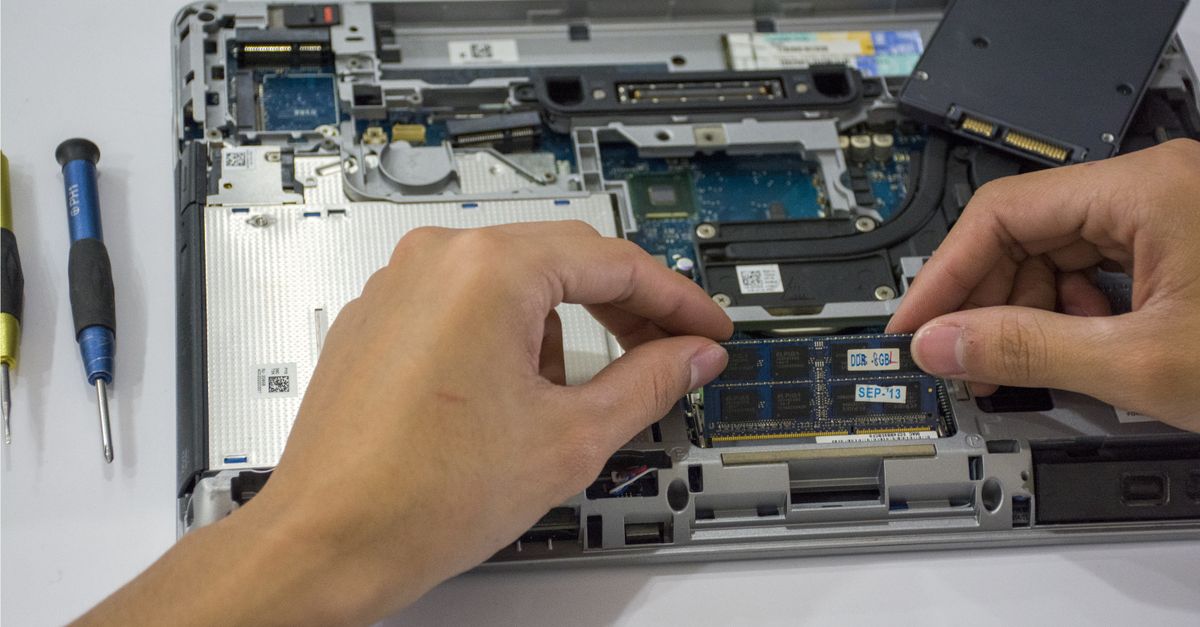
Boosting your system’s resources can significantly enhance performance. One effective method involves upgrading your RAM, which allows your computer to handle multiple tasks simultaneously without slowing down. Installing additional memory is often straightforward and can make a noticeable difference, especially when running memory-intensive applications.
Another option to consider is upgrading your storage solution. Solid State Drives (SSDs) are faster than traditional Hard Disk Drives (HDDs) and can improve boot times and application loading speeds. Replacing an old HDD with an SSD could provide a substantial performance increase, helping your machine run more smoothly under heavier workloads.
Upgrading RAM and Storage
Enhancing your computer’s performance often involves increasing its RAM and storage capacity. Upgrading RAM allows your system to handle more tasks simultaneously without slowing down. If you frequently run multiple applications or work with large files, investing in additional memory can provide a noticeable improvement. Look for compatible RAM modules that match your motherboard specifications, ensuring optimal performance and stability.
Storage upgrades can significantly impact your system's responsiveness. Transitioning from a traditional hard drive to a solid-state drive (SSD) can enhance load times for applications and the operating system itself. SSDs offer faster data access speeds compared to HDDs. Consider replacing your old storage device or adding an additional drive to expand your available space. This not only improves speed but also allows for efficient file management and quicker access to stored data.
Uninstall Unused Software
Software that is no longer in use can take up valuable memory and processing power on your PC. It often runs in the background, contributing to slower overall system performance. Taking the time to identify and remove these applications can create a more streamlined operating environment. This can be especially beneficial for those who frequently multitask or run resource-heavy software programs.
To effectively manage your applications, check the list of installed software through your system's settings. Look for programmes that haven’t been used in a while or are no longer necessary for your daily tasks. Uninstalling these will free up space on your hard drive and may improve the responsiveness of your computer. Regular maintenance in this area helps keep your system running smoothly.
Streamlining Your Applications
Removing applications that you no longer use can significantly enhance system performance. Many computers come pre-installed with software that is rarely touched. This not only takes up valuable storage space but also consumes system resources. Manually reviewing your installed programs and prioritising which are truly necessary can make a noticeable difference.
In addition to uninstalling unused software, consider disabling applications that launch automatically during startup. This can slow down your boot time and overall responsiveness. Access your task manager or system preferences to manage these settings, ensuring that only the essential applications load when you start your PC. Streamlining in this manner helps maintain optimal performance and allows you to focus on the tools you actually use.
FAQS
What are temporary files and why should I clean them?
Temporary files are files created by software applications to temporarily hold data while they are being used. Over time, these files can accumulate and take up valuable disk space, potentially slowing down your PC. Cleaning them helps improve performance and free up storage.
What tools can I use for file cleanup?
There are several tools available for file cleanup, including built-in options like Disk Cleanup on Windows, as well as third-party software like CCleaner or BleachBit. These tools help identify and remove unnecessary files easily.
How can I increase system resources on my PC?
You can increase system resources by upgrading your hardware, such as adding more RAM or replacing your storage device with a larger, faster SSD. Additionally, closing unnecessary applications can free up resources temporarily.
How do I know if I need to upgrade my RAM or storage?
If your computer frequently runs out of memory, becomes sluggish when multitasking, or if you consistently receive messages about low disk space, it may be time to upgrade your RAM or storage.
What is the best way to uninstall unused software?
The best way to uninstall unused software is by using the Control Panel on Windows or the Applications folder on macOS. You can also use third-party uninstaller programs that can help remove leftover files and registry entries for a thorough cleanup.
Related Links
Navigating Issues with Third-Party Applications on LinuxA Guide to Resolving Mobile Application Glitches
Fixing Connectivity Problems with Cloud-Based Applications
Solutions for Regular Application Freezes on iOS
Troubleshooting Application Launch Failures on Android Devices
Diagnosing Background Application Conflicts in Windows
Resolving Compatibility Problems Between Apps and Operating Systems
Effective Solutions for App Crashes on macOS