Identifying and Fixing Frequent Hardware Failures in Gaming PCs
Table Of Contents
Motherboard Malfunctions
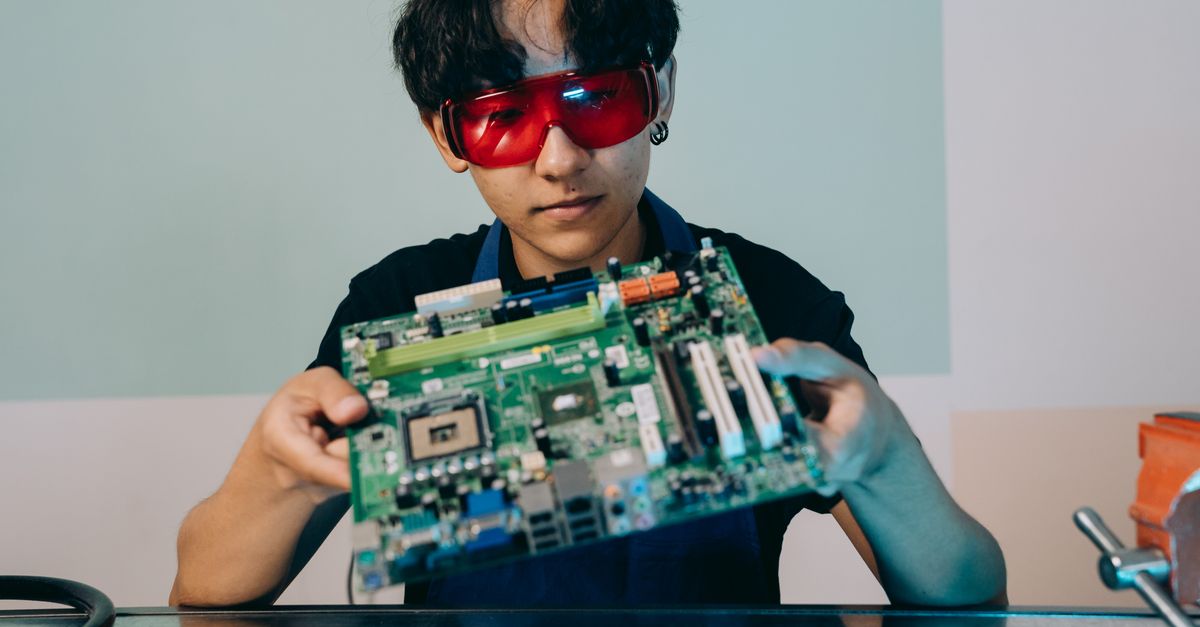
A malfunctioning motherboard can lead to a range of issues in a gaming PC. Players may experience unexpected crashes, failure to boot, or even hardware not being recognised. These problems can stem from various factors, including physical damage, outdated firmware, or manufacturing defects. Overheating components can also strain the motherboard, resulting in erratic functionality.
When troubleshooting a suspected motherboard issue, it’s essential to check for physical signs of damage such as burnt areas or swollen capacitors. Additionally, confirming proper power supply connections and ensuring that all components are seated correctly can help alleviate problems. If these steps do not resolve the issue, testing with a different motherboard or seeking professional help might be necessary to pinpoint the defect.
Common Symptoms of a Defective Motherboard
A defective motherboard can manifest through various symptoms that may hamper your gaming experience. One of the most noticeable signs is when the PC fails to boot up or experiences a series of continual beeping sounds. These beeps often indicate specific hardware issues according to the motherboard's manual and can provide vital clues regarding the malfunction. Additionally, intermittent system crashes and unexpected shut downs without warning could suggest that the motherboard is struggling to communicate with other components effectively.
Another symptom can be observed through the inability to detect hardware such as RAM or graphics cards. This typically results in error messages during boot-up or the system failing to recognise plugged devices. Users might also experience persistent problems with USB ports, including devices not getting power or connection failures. Overheating issues might arise as well, owing to the motherboard's failure to maintain stable operating conditions, leading to further complications during gameplay.
RAM Issues and Their Effects
Random Access Memory (RAM) plays a crucial role in a gaming PC's performance. Insufficient or faulty RAM can lead to various problems, including system crashes, unexpected reboots, and decreased performance during gaming sessions. Users may notice stuttering in games or longer loading times, which can significantly affect the overall gaming experience. In demanding titles, inadequate RAM can result in frame drops or lag, detracting from immersion and responsiveness.
Faulty RAM can also manifest in other ways. Users may see frequent error messages or blue screens of death (BSOD) while running applications or games. As RAM issues worsen, programs may freeze or become unresponsive, resulting in lost progress. Diagnosing RAM problems is vital, as addressing them quickly can prevent further complications and ensure a smoother, more enjoyable gameplay experience.
How to Spot Faulty RAM
One of the most noticeable indicators of faulty RAM is frequent system crashes or unexpected blue screens. If these incidents occur during memory-intensive tasks such as gaming or video editing, it may be time to investigate your RAM modules. Another symptom can be a sudden drop in system performance, manifesting as stuttering in games or sluggish response when multitasking. These issues suggest that the RAM may not be handling data effectively, which compromises overall functionality.
Another way to diagnose RAM problems is by using diagnostic tools such as MemTest86 or the built-in Windows Memory Diagnostic. Running these tests can reveal errors that indicate defective memory modules. Users should pay attention to the results; if the tool reports problems, the RAM may need replacing. Additionally, if the computer fails to boot properly or fails to recognise all installed memory, this can also point to underlying issues with the RAM. Checking for physical signs, like burnt or damaged pins or modules, is always advisable when exploring hardware failures.
Cooling System Failures
Inefficiencies in a gaming PC's cooling system can lead to significant performance issues. Overheating components may result in unexpected shutdowns or reduced frame rates during gameplay. Signs of cooling failures often include excessive noise from fans, erratic temperature readings, or visible dust accumulation in the heatsinks and air vents. If the temperatures of the CPU or GPU rise above their optimal levels, it can not only hinder performance but can also shorten the lifespan of these critical hardware components.
Regular maintenance is key to preventing cooling system failures. Dusting off fans and ensuring proper airflow within the PC case are essential steps for keeping temperatures in check. Upgrading thermal paste on CPU and GPU can also provide better heat transfer and enhance overall cooling efficiency. Moreover, investing in higher quality fans or liquid cooling solutions may further improve thermal management, ensuring that the gaming experience remains smooth and uninterrupted.
Recognizing Cooling System Inefficiencies
A gaming PC's cooling system plays a vital role in maintaining optimal performance. Signs of inefficiency regarding cooling can manifest in various ways. Elevated temperatures are a primary indicator, especially if the system experiences unexpected shutdowns or thermal throttling during gameplay. Players may notice that their hardware, including the CPU and GPU, tends to overheat more quickly, which can result in lagging and stuttering.
Another symptom of a malfunctioning cooling system is increased noise levels from the fans. Overworked fans may struggle to maintain airflow, often becoming louder as they try to compensate for the lack of effective cooling. Additionally, physical signs such as dust buildup on heatsinks or fans can hinder performance, causing the system to work harder to cool down components. Observing these inefficiencies provides an opportunity to implement necessary maintenance or upgrades before more significant damage occurs.
FAQS
What are some common signs of a malfunctioning motherboard?
Common signs of a malfunctioning motherboard include random system crashes, failure to boot, unusual beeping sounds during startup, and non-responsive peripherals.
How can I tell if my RAM is faulty?
You can tell if your RAM is faulty by experiencing frequent blue screens of death (BSOD), system freezes, and errors during memory-intensive tasks. Running a memory diagnostic tool can also help identify issues.
What are the symptoms of a failing cooling system in a gaming PC?
Symptoms of a failing cooling system include high temperatures on your CPU or GPU, unusual fan noises, system overheating, and unexpected shutdowns during gaming sessions.
How can I fix issues with my motherboard?
Fixing motherboard issues may involve reseating components, updating BIOS, or replacing the motherboard entirely if it's defective. It's advisable to consult with a professional if you’re unsure.
What steps can I take to improve my RAM performance?
To improve RAM performance, you can upgrade to higher-capacity RAM, ensure proper installation, run memory tests, and keep your system free from malware that might affect performance.
Related Links
Understanding Common Laptop Power Issues on the Sunshine CoastTroubleshooting Overheating Problems in Desktop Computers
Addressing Faulty Hard Drive Symptoms in Personal Computers
Diagnosing Connectivity Problems with Network Printers
Solutions for Jammed Optical Drives in Older Computers
Repairing Faulty Motherboard Connections in Custom Builds